
Install the router
Place the router near a strong cellular signal area, connect the power adapter, and wait for the device to finish startup.
Support resources for fixed wireless setup, Wi-Fi 6 connectivity, wireline failover, remote management, and home or business deployments.
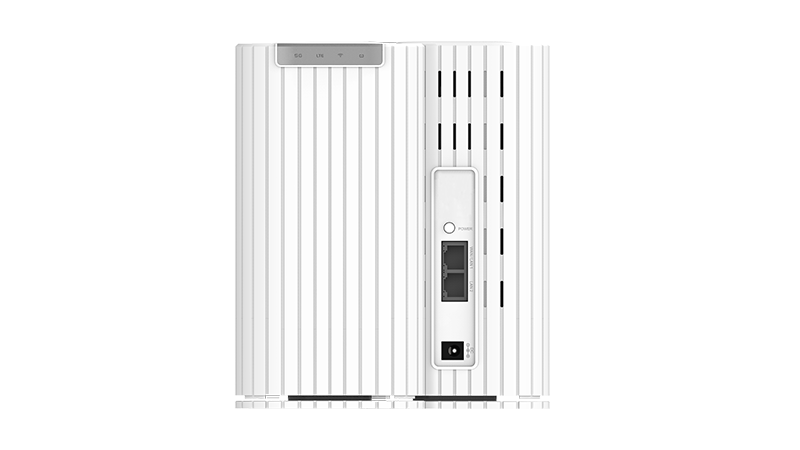
Use these quick steps for common setup, connection, reset, and management tasks.
Place the router near a strong cellular signal area, connect the power adapter, and wait for the device to finish startup.
Use the Wi-Fi network information provided with the router or connect wired equipment through Ethernet when available.
Connect the primary wired internet service to the WAN path, then use the admin portal to confirm failover and failback behavior.
Use the web portal restart option when possible, or disconnect power briefly and reconnect the adapter.
Keep product documentation and firmware workflows easy to find for customers, sales teams, and support teams.
Download or request the current user manual for setup, device settings, LEDs, charging, Wi-Fi, and admin portal guidance.
Download User ManualRequest the latest firmware information before updating. Firmware should only be installed from a trusted Franklin/JEXtream source.
Firmware UpdateAnswers to common support questions for the CG890 5G Home Connect + Wi-Fi 6 Router.
Failover lets the router help maintain internet access by using cellular connectivity when a primary wired service is unavailable.
The CG890 product information positions the router for up to 32 simultaneous connected devices.
Use an elevated, open location with strong cellular reception and space around the router for ventilation.
Yes. CG890 messaging supports remote management services and web-based network control.
For warranty, replacement, or service questions, contact sales/support with the product model, purchase channel, and issue summary.
Send a request to the Franklin Access sales/support team and include the product model in your message.