
Initial setup
Connect power, attach Ethernet from your modem or gateway to the WAN port, wait for the status LEDs, then connect to the default Wi-Fi network shown on the device label.
Support resources for setup, Wi-Fi management, SEIONA pairing, Ethernet connections, and everyday home network troubleshooting.
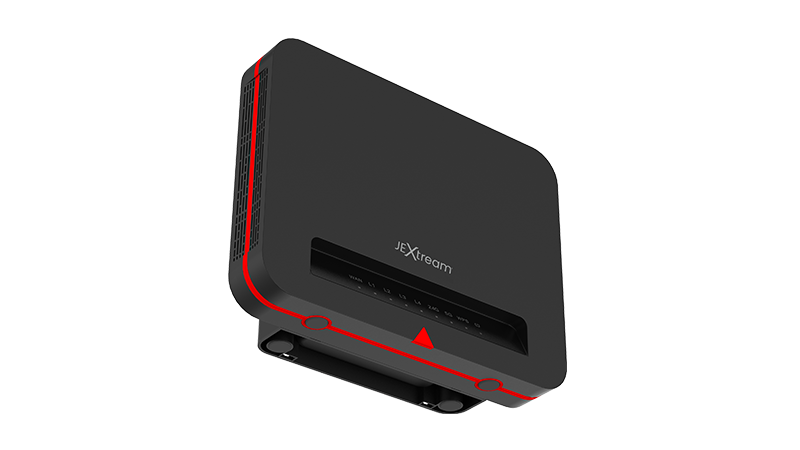
Use these quick steps for common setup, connection, reset, and management tasks.
Connect power, attach Ethernet from your modem or gateway to the WAN port, wait for the status LEDs, then connect to the default Wi-Fi network shown on the device label.
Connect to the router network, open a browser, and sign in to the local web admin page using the credentials provided with the device.
Confirm the router is online, then follow the SEIONA setup flow to add protection and family-friendly controls for connected devices.
Press and hold the reset button until the status LEDs change, then allow the router to restart before setting it up again.
Keep product documentation and firmware workflows easy to find for customers, sales teams, and support teams.
Download or request the current user manual for setup, device settings, LEDs, charging, Wi-Fi, and admin portal guidance.
Download User ManualRequest the latest firmware information before updating. Firmware should only be installed from a trusted Franklin/JEXtream source.
Firmware UpdateAnswers to common support questions for the FX20 Wi-Fi 6 Router.
Place the router in an open central location, away from dense walls, metal surfaces, and large appliances.
Yes. Sign in to the web admin portal and update the SSID and password under wireless settings.
Restart the router, confirm the Wi-Fi password, check whether the device is blocked by settings, and try reconnecting.
Yes. FX20 can be positioned with SEIONA protection messaging for supported home-network controls.
For warranty, replacement, or service questions, contact sales/support with the product model, purchase channel, and issue summary.
Send a request to the Franklin Access sales/support team and include the product model in your message.