
Connect to Wi-Fi
Power on the hotspot, open the device display, and connect your device using the displayed network name and password.
Support resources for 5G mobile hotspot setup, Wi-Fi 7 tri-band connections, Ethernet access, FirstNet use, power-bank charging, and remote management.
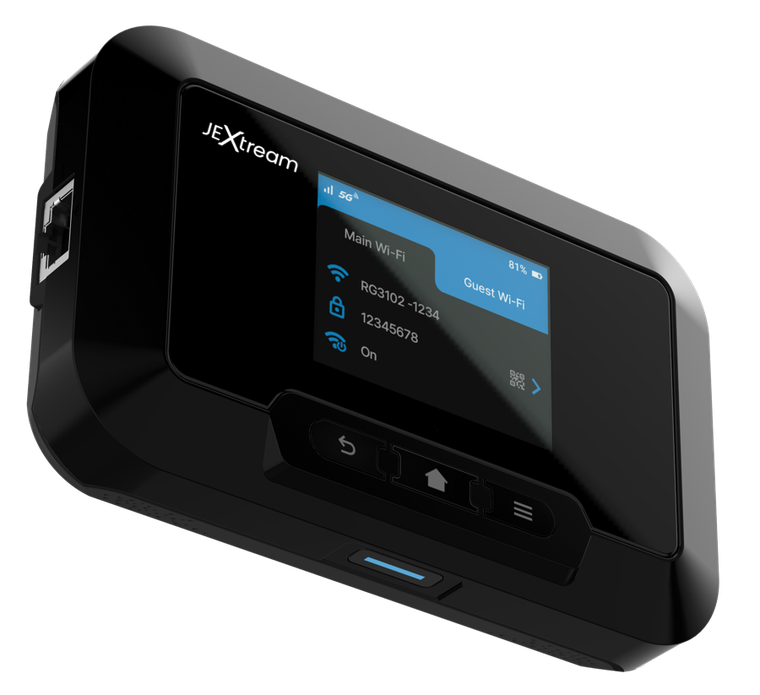
Use these quick steps for common setup, connection, reset, and management tasks.
Power on the hotspot, open the device display, and connect your device using the displayed network name and password.
Connect a compatible Ethernet cable to provide local wired network access when Wi-Fi is not preferred.
Use the password-protected web admin portal to adjust Wi-Fi, security, DHCP, VPN pass-through, and filtering settings.
Connect a supported external device to the hotspot charging port when power-bank functionality is needed.
Keep product documentation and firmware workflows easy to find for customers, sales teams, and support teams.
Download or request the current user manual for setup, device settings, LEDs, charging, Wi-Fi, and admin portal guidance.
Download User ManualRequest the latest firmware information before updating. Firmware should only be installed from a trusted Franklin/JEXtream source.
Firmware UpdateAnswers to common support questions for the RG3102N 5G Mobile Hotspot.
RG3102N product information supports connectivity for up to 32 devices.
RG3102N supports Wi-Fi 7 tri-band connectivity across 2.4GHz, 5GHz, and 6GHz.
The product page notes certification on the AT&T Network and FirstNet.
Confirm the cable is seated correctly, restart the connected device, and check local network settings in the admin portal.
For warranty, replacement, or service questions, contact sales/support with the product model, purchase channel, and issue summary.
Send a request to the Franklin Access sales/support team and include the product model in your message.